Figma Installation
Learn how to install and use the Figma desktop application for daily design work.
Figma Desktop Application
After understanding how Figma works in the browser, the next step is learning how to use Figma as a desktop application. While the browser version is fully capable, the desktop app is often preferred for daily and long design sessions.
The Figma desktop application is available for Windows and macOS and is designed to provide a smoother and more focused working experience.
Why Install Figma on Your Device?
Installing Figma on your device does not change how your files work, but it improves how you interact with them.
Using the desktop application helps you:
- Work more comfortably during long design sessions
- Experience smoother performance on large or complex files
- Use system-level keyboard shortcuts more reliably
- Reduce distractions from browser tabs
All files remain cloud-based, so switching between browser and desktop does not affect your work.
Supported Operating Systems
Before installing, make sure your device meets these requirements:
- Windows (64-bit)
- macOS
Linux users can continue using Figma through the browser, as the desktop app is not officially supported on Linux.
How to Install Figma Desktop App
Follow these steps to install Figma on your device:
- Open your browser and visit Figma Downloads
- Choose the installer based on your operating system:
- Download for Windows
- Download for macOS
- Run the downloaded installer file
- Follow the installation instructions on your screen
- Open the Figma desktop application
- Log in using the same Figma account you created earlier
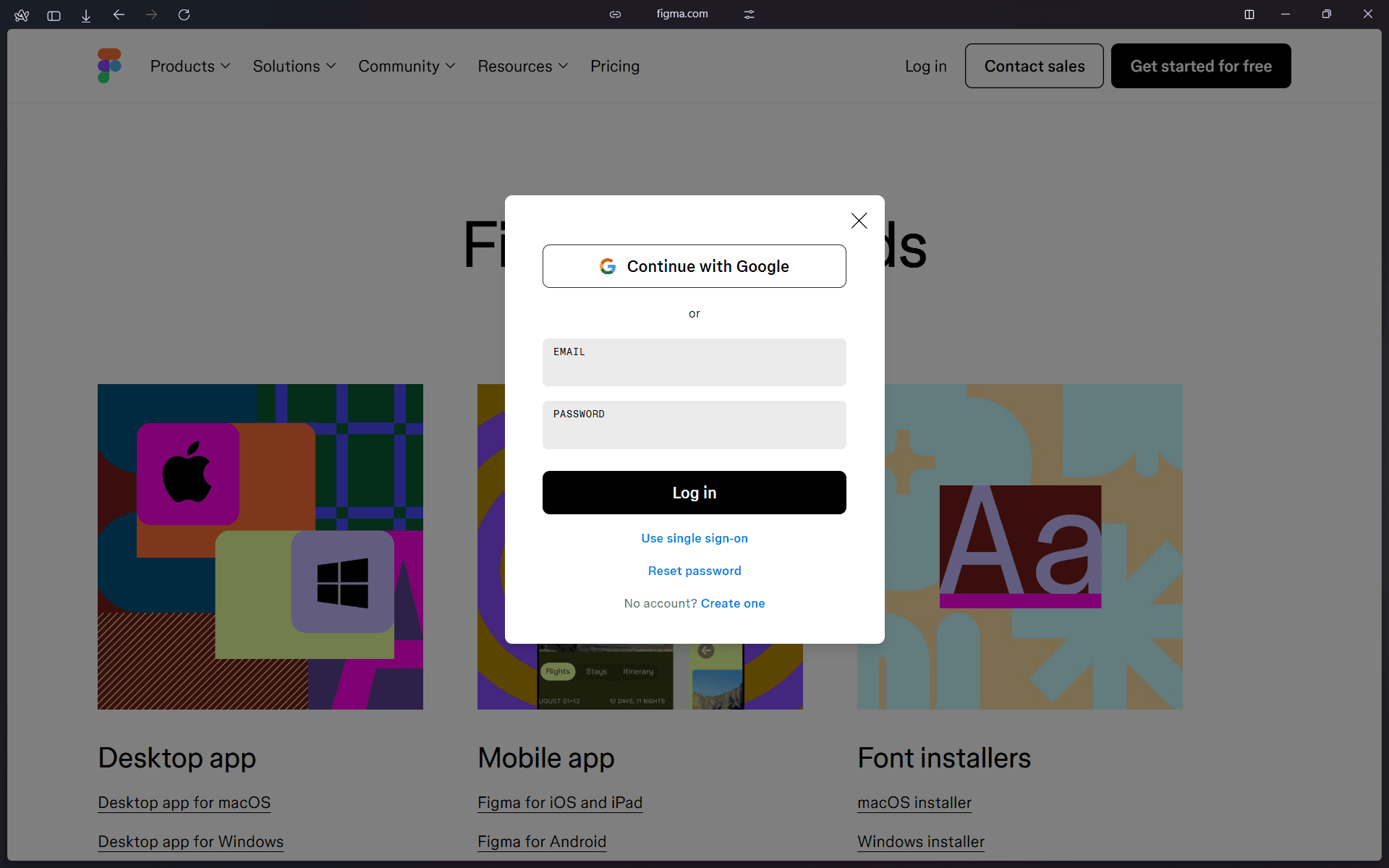
Once logged in, you will see the same dashboard as the browser version.
Desktop App vs Browser
Although both versions are connected to the same account, their usage context is slightly different.
The desktop app is best used when:
- You work on Figma every day
- You handle large design systems or many components
- You want a more stable and focused environment
The browser version is still useful for:
- Quick edits
- Shared or public computers
- Devices where installation is not possible
You can freely switch between both at any time.
File Sync and Cloud Storage
All Figma files are automatically synced to the cloud.
This means:
- No manual saving is required
- Files opened in the browser will appear in the desktop app
- Changes are reflected instantly across devices
Your device acts only as an access point, not a storage location for design files.
Practice Activity
To confirm your setup:
- Install the Figma desktop application from Figma Downloads
- Log in using your existing account
- Open a design file you created in the browser
- Make a small change and confirm it syncs correctly
Output of This Section
At the end of this section, learners should have:
- Figma installed on their device
- Understanding of when to use desktop vs browser
- A stable environment for continuous design work