Figma Browser
Learn how to access Figma through a web browser and create your first Figma account.
Figma in the Browser
Before installing anything, it is important to know that Figma can be used directly from a web browser. This makes Figma easy to access for beginners, students, and teams working across different devices.
Using Figma in the browser allows you to start designing immediately without worrying about system compatibility or installation steps.
Why Use Figma in the Browser?
Figma was built as a cloud-based tool from the beginning. This means the browser version is not a limited version, but a fully functional design environment.
With browser access, you can:
- Design UI and UX layouts
- Create and edit components
- Build interactive prototypes
- Collaborate with others in real time
- Access all your files from anywhere
This approach is especially useful in learning environments, classrooms, or when using shared computers.
Creating a Figma Account
To start using Figma, you need an account.
Follow these steps:
Open Figma Website
Open your browser and go to Figma
Start Registration
Click the Sign up button on the homepage.
Choose Sign Up Method
Select one of the available options:
- Sign up with email
- Continue with Google account
Complete Registration
Follow the on-screen instructions to finish creating your account.
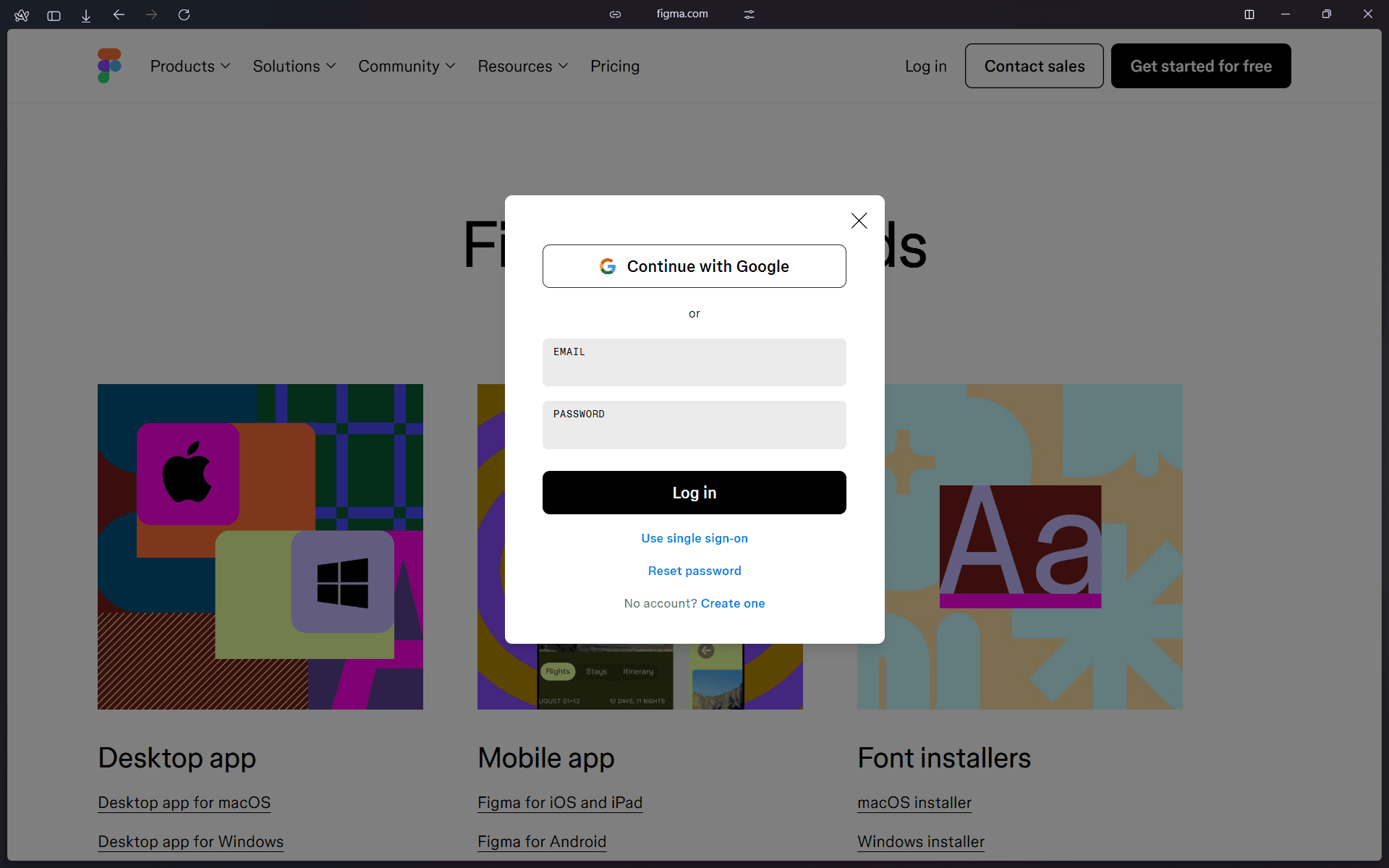
Log In to Your Account
Log in using the account you just created and figma will be redirected to the Figma dashboard.
Exploring
Once logged in, you will see the main Figma dashboard. This is your starting point for all design activities.
Key areas to notice:
-
Drafts
Personal design files you are working on -
Teams
Shared spaces for collaboration with others -
Community
Public design files, templates, and learning resources
From this dashboard, you can create new design files, open existing ones, or explore community templates.
Browser Requirements
For the best experience, Figma recommends using modern browsers such as:
- Google Chrome
- Microsoft Edge
- Safari
- Mozilla Firefox
A stable internet connection is required because Figma syncs your work in real time.
When Browser Usage is Recommended
Using Figma in the browser is ideal for:
- Beginners who are just learning Figma
- Students and classroom settings
- Quick access without installation
- Working on different devices
You can always switch to the desktop application later without losing any files.
Practice Activity
To get comfortable with browser-based Figma:
- Log in to Figma using your browser
- Create a new design file
- Rename the file to “My First Figma File”
- Explore the dashboard menus
- Open the Community tab and preview one design file
Output of This Section
At the end of this section, learners should have:
- A working Figma account
- Access to Figma through a web browser
- Familiarity with the Figma dashboard
- Readiness to start designing without installation